- MN ABE Connect
- Archive
- HyFlex Classes: An Explainer with Resources and Tips
 February 2, 2026
HyFlex Classes: An Explainer with Resources and Tips
Hybrid, HyFlex, Hi…What?
Do all of your ABE colleagues seem to be talking about hybrid or HyFlex classes lately? Same here!
This article is about the HyFlex model. In everyday conversation, “hybrid” usually refers to meetings, classes, or workplaces where some people are present in person and other people are working or learning remotely. In Minnesota adult education, however, “hybrid” and “HyFlex” classes have very specific definitions.
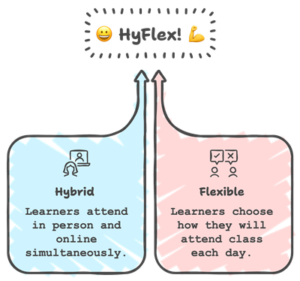 Hybrid classes have both required in-person meetings and required online synchronous or asynchronous work.
- HyFlex classes are classes where all learners attend at the same time, but some may be physically present in the classroom and some may be joining via an online meeting platform like Google Meet or Zoom.
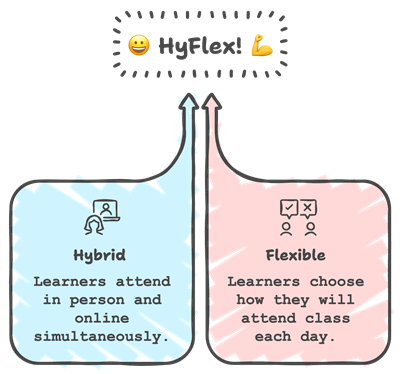
Additional delivery models include Hybrid (online only) and Synchronous online. I recommend checking this SID help article to be sure that your classes have the correct delivery model listed, since this can affect whether prospective learners will find your class when they search the statewide hotline.
The key difference between hybrid and HyFlex classes is the element of learner choice. In HyFlex classes, learners decide if they will attend in person or join online. Both choices are valid, and the teacher and program staff make intentional decisions to provide an equitable experience for both groups of learners.
What devices do I need?
Devices designed for hybrid meetings can make it easier for all learners to have a consistent experience. Examples include:
- Meeting OWL, an all-in-one camera/microphone/speaker device designed to follow whomever in the room is speaking. The speakers enable online learners to be heard clearly when they speak to the in-person learners.
- Swivl Robot, a swiveling device that holds an iPad to capture video and audio of a classroom. Mankato Adult Education has used Swivl devices for HyFlex classes since 2021. Their set-up includes a tripod or stand for the Swivl and markers (portable microphones) for the teacher and/or certain locations in the room.
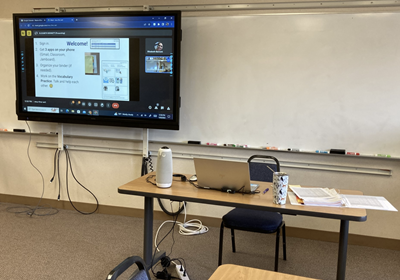
Here’s one example of a HyFlex set-up:
- Meeting OWL
- Teacher laptop
- Newline smart board for in-person learners to see the Google Meet
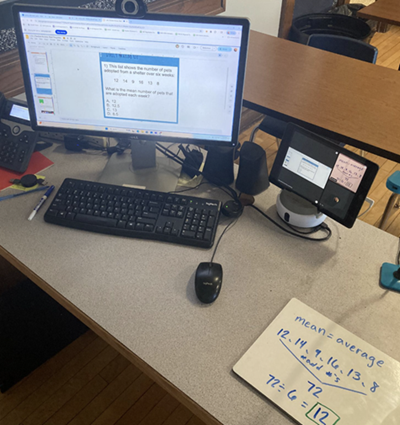
Here’s another example:
- Swivl robot
- Teacher desktop computer with webcam
- Teacher document camera
- Chromebooks for in-person learners to view and participate in Google Meet with online learners
Does HyFlex have to mean high tech?
Not necessarily! Hybrid meeting devices are certainly nice to have, but it is possible to teach a HyFlex class without one. There is no one-size-fits-all set-up; what works “best” depends on your unique context.
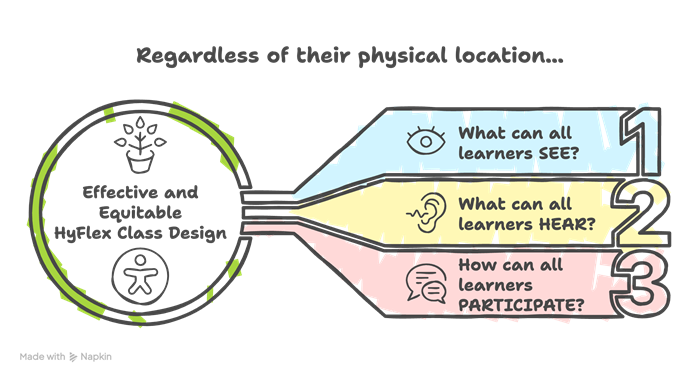
Instead of thinking about HyFlex as an in-person class with some online learners, it can be helpful to flip your perspective: it’s now an online class, and some learners just happen to be in the room with you. Just as in online teaching, you want to consider how to best use the tech tools available to you so that:
- All learners can see what they need to see.
- All learners can hear what they need to hear.
- All learners can meaningfully participate.
Sorry, but your whiteboard is dead, and you have to sit down.
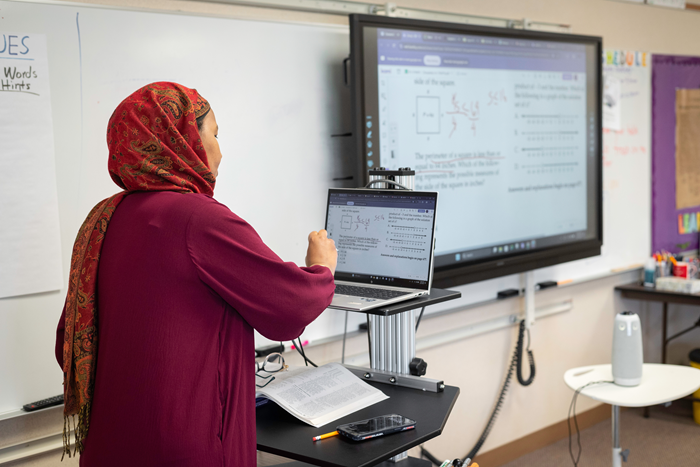
In their January 29 presentation on HyFlex teaching (links below), Mankato teachers shared several “non-negotiables” for HyFlex teaching. One of my favorites was, “The whiteboard is dead.” Unless you have a specialized camera that is specifically designed to show your physical whiteboard (these do exist, but I don’t think anyone in ABE can afford one), the truth is that online learners probably won’t be able to see everything you’re writing or drawing. It’s not equitable, and you need to start using other tools instead.
If you need to write or draw by hand, better methods include:
- Paper or a small whiteboard with a document camera. If you don’t have a “real” document camera, see if you can use a smartphone, tablet, or other digital camera. Many teachers found creative workarounds during the Covid era, and you can ask your colleagues for ideas or find DIY document camera tutorials by searching online.
- A tablet or touchscreen computer with a stylus.
- Smart boards (as long as what you’re writing is being shared directly to the online meeting).
If you don’t need to write by hand, even better! You can use digital slides, a Google Doc, Microsoft Word, a PDF that you can annotate (Kami is a popular option for this, and Ellii lessons also generally work well), or any other digital file. Just share your screen, window, or tab to the online meeting. You can write by editing the file itself and/or by using built-in annotation tools in Google Meet or Zoom.
Of course, in-person learners need to see what you’re sharing, too. You can:
- Use an LCD projector, smart board, Apple TV, or other device to display your computer screen for the entire classroom.
- Have in-person learners join the online meeting on their own devices. This often makes it easier for in-person and online learners to interact; for example, everyone can use the meeting chat and quickly join breakout groups.
- When feasible, provide in-person learners with a paper version of the same content you’re sharing to the meeting.
If you don’t have a specialized camera and a smart board or another large video monitor in your classroom, don’t worry too much about in-person and online learners not being able to see each other. Online learners often can’t have their cameras on anyway (because of bandwidth and privacy concerns), and most learners would rather be able to see their teacher than their classmates.
This brings me to another non-negotiable from the Mankato teachers: the teacher must stay put! You need to stay at your computer to effectively manage the online meeting. As much as possible, lean on in-person helpers (volunteers, other learners, paraprofessionals, administrative or support staff, etc.) to move around and support the in-person learners. Don’t leave your online learners looking at a blank wall or your belly!
Can you hear me?
It’s usually relatively easy for online learners to hear and be heard by the teacher (as long as you stay at your computer). It can be harder for online and in-person learners to hear each other, especially without specialized hybrid meeting equipment. Some workarounds might include:
- All in-person learners join the online meeting on their own devices. Be prepared to troubleshoot audio issues so you don’t have unbearable feedback or echoing. Some teachers recommend having headphones or earbuds available for in-person learners.
- Only some in-person learners join the online meeting on their own devices, as needed. For example, during a small group activity, one in-person learner per group joins the online meeting and then joins a breakout group with the designated online learner(s). This works best if you have a large classroom or access to another space where groups can spread out.
- During small group activities, online learners only work with other online learners, and in-person learners only work with other in-person learners. This can be simpler to manage, especially if you don’t have any in-person helpers. In order to build class community, though, be intentional about giving in-person and online learners opportunities to interact at other times. Perhaps you:
- Make a habit of repeating/revoicing learners’ comments or questions and then calling on a learner attending in the other modality to respond. For example, “Sandra [who is in person] estimated 25%. Pierre [who is online], was your estimate greater or less than Sandra’s?”
- Write a list of the online learners’ names on your whiteboard (in this instance, it isn’t dead) for the in-person learners and list the in-person learners’ names in the chat. Invite all learners to take turns calling on each other.
- Use tech tools (something as simple as a shared Google Doc or Padlet can work well) to support sharing and collaboration, either during class time or asynchronously.
- Tweak your class routines to include community-building activities. Can you practice using the past tense while you play Two Truths and a Lie? Add two learners’ names or a word in someone’s home language to the spelling list each week? Invite learners to share a sketch or a photo that illustrates a concept you’re teaching?
Remember, it’s an online class – under emergency circumstances.
Since you’re at your computer anyway, it’s time to dust off those online teaching skills you (may have) learned a few years ago. Online classes should not be lectures where learners only listen passively to the teacher! You still need to find ways for all learners to actively participate, interact with one another, practice new skills, demonstrate their learning, and receive meaningful feedback from you and their peers.
HOWEVER, before you start using every EdTech tool you’ve ever heard of (and overwhelming yourself and your learners), remember that most online learners are probably joining your class on their phones, may have weak or unreliable internet connections, and may not have been able to attend an in-person orientation or onboarding session for online classes. Certain “best practice” strategies for online learner engagement may be inaccessible under these circumstances.
For example, I always wanted my online learners to be able to use the meeting chat and access links to activities that I would put in the chat. Unfortunately, something as “simple” as finding and using the Google Meet chat can be very difficult and frustrating for learners using phones. This isn’t to say it’s impossible, but you must be prepared to spend time teaching (and reteaching) how to do it, allow additional time for learners to practice, and have a back-up plan for individual learners who may need additional support.
Furthermore, for a HyFlex class, you need to consider what the in-person learners will be doing. Will they also be signed in to the online meeting and learning the same skill? Are they using the same types of devices as the online learners? Or will you have them work on a separate, offline activity instead?
This Padlet lists skills you may need to plan to teach to online learners, as well as some ideas for activities learners can do with those skills. For example, if it’s only feasible to teach Level 1 skills under your circumstances (very basic things like mute/unmute and camera on/off), all online and in-person learners can still participate by speaking or reading to the whole group, writing on a paper and showing their paper to the teacher, or doing TPR activities. (If you can’t provide paper copies of longer texts or worksheets to online learners, you might want to try sending a photo of the paper via a messaging app or text message. It isn’t ideal for teachers to be forced to use their personal devices, but this may be the easiest way to share content.)
These resources address other activities and strategies for online and HyFlex classes. You should not feel pressured to implement all of them! Be very selective and only choose activities that feel manageable and appropriate for your current context.
- Ways to Transfer In-Person Routines and High leverage Practices to Remote Instruction – This comes from the fabulous Jayme Adelson-Goldstein. However, it hasn’t been updated since 2023 and only refers to Zoom. Many Zoom features are different or unavailable in Google Meet.
- Engaging Online Instruction for Literacy-Level ESOL – 25-minute webinar and slides 24-43
- Learning Activities for HyFlex Courses – Scroll all the way down to find the interactive chart. Open the chart in fullscreen view. Note that this resource includes asynchronous activities, which are NOT part of HyFlex in Minnesota adult education. (You can, however, incorporate your own asynchronous activities in a TVM lesson or teacher-created course.)